
Trend Monitoring
Optimizing Software Development with Trend Monitoring in CppDepend
CppDepend provides powerful trend monitoring capabilities that let you track code metrics over time. Trend charts are made of trend metrics values logged over time at analysis time. More than 50 trend metrics are available by default and it is easy to create your own trend metrics.
Introduction
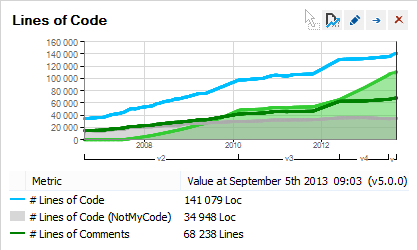
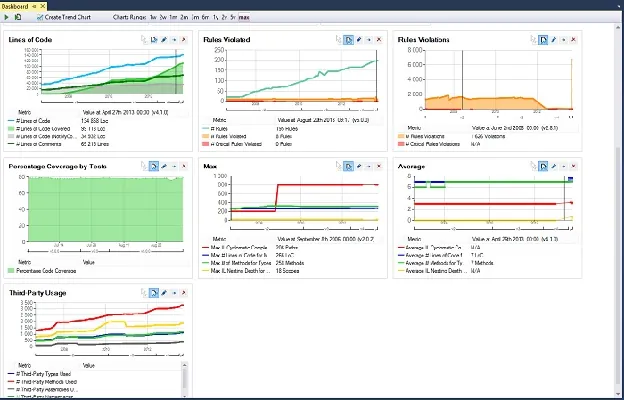
Trend charts are displayed on the CppDepend dashboard. Some trend charts are available by default to show:
- Lines of Code
- Number of Code Rules Violated and number of Code Rules Violations
- Max and Average values for various Code Quality Metrics
- Third-Party Usage
Trend charts can be customized and it is easy to create your own trend charts to show default trend metrics and/or custom trend metrics.
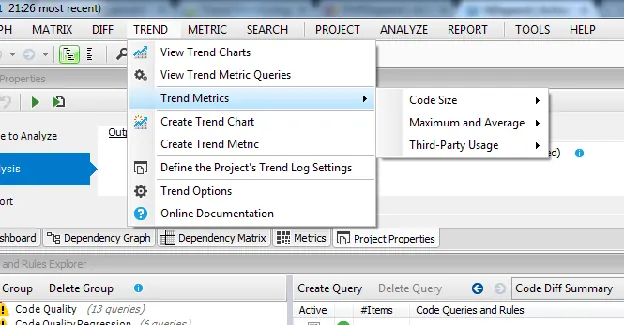
For all trending related operations, a trend menu is available.
Trend Metrics
To list the default trend metrics, look at the Queries and Rules Explorer panel and select the group named Trend Metrics.
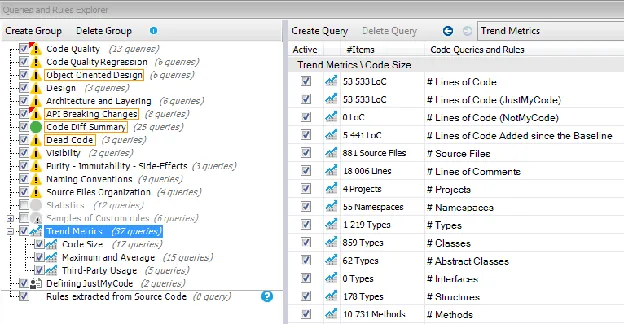
If trend metrics are listed in the code queries panel, it is because a trend metric is a CQLinq code query. It is a particular code query:
- A trend metric is a code query that returns a scalar. Hence trend metrics query often use LINQ aggregate operators that returns a scalar. This includes operators like Count() Sum() Average() Min() Max() ...
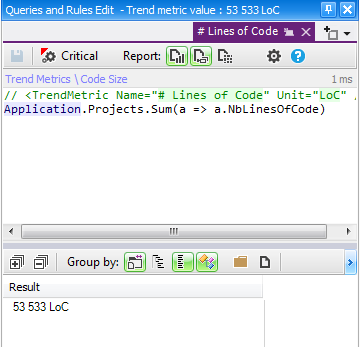
- The header of a code query is a comment line formatted this way // <TrendMetric Name="Metric Name" Unit="Metric Unit Name" />
For example here is the # Lines of Code trend metric code query:
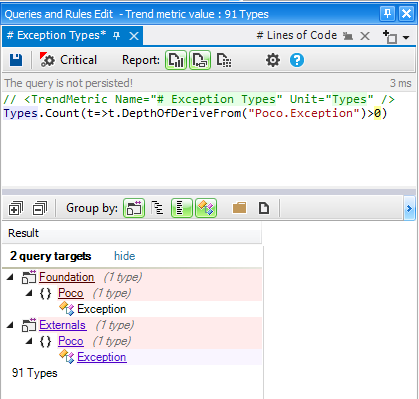
Since a trend metric is a code query, it is easy to create your own trend metrics or modify existing ones. For example here is a code query that counts the numbers of types inheriting from Poco.Exception:
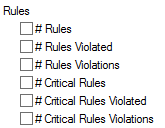
There are six default trend metrics that are not code queries. They relate to the number of code rules violated and the number of code rules violations:
Trend metrics are logged at analysis time as explained in the section Logging Trend Metrics.
Trend Charts
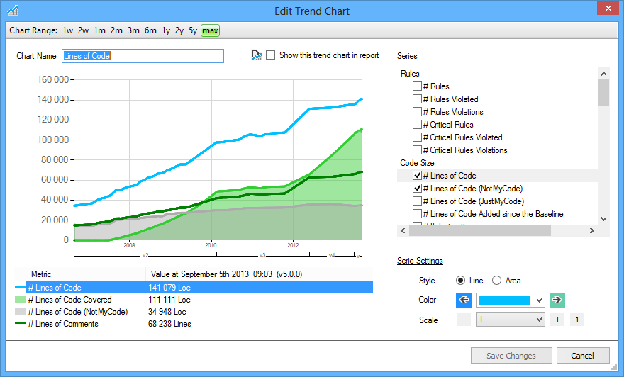
The Create or Edit trend charts dialog lets you define all trend chart properties. The list of trend metrics series is available and checking a series lets you visualize it on the trend chart. A series appearance can be customized, this includes:
- The color of the series
- If the series is displayed as a line or as an area
- Defining the series scale. The scale setting is useful to adjust several series scales to compare them on the same trend chart.
Reporting Trend Charts
In the picture above we can see a tick box labelled: Show this trend chart in report. Trend charts can indeed be displayed in report.
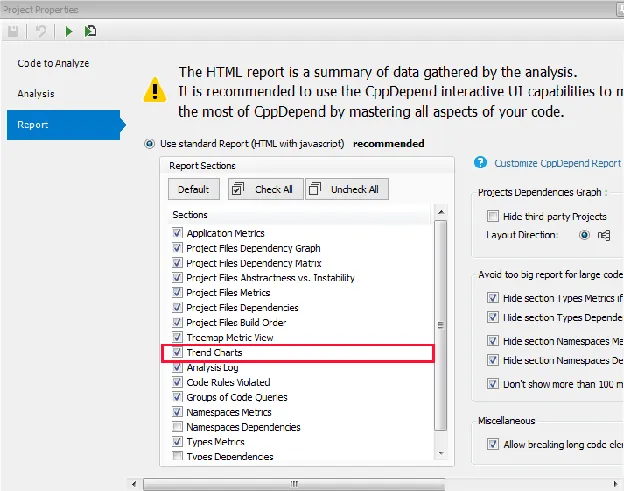
For that the tick box CppDepend Project Properties panel > Report tab > Use standard report ticked > Trend Charts must be ticked.
Logging Trend Metrics
Trend metrics values are logged at analysis time. By running analysis every day, a series of trend metric values is built.
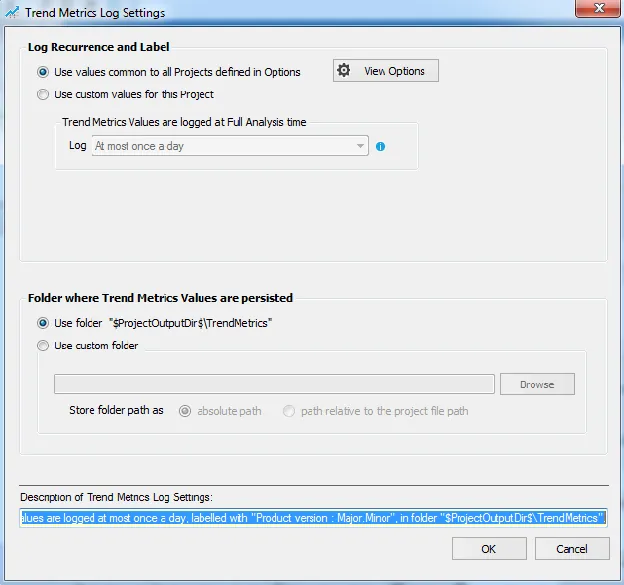
Settings related to log of trend metrics values are available, both in the CppDepend Options > Trend section, and in the CppDepend Project Properties > Analysis > Trend Metrics Log section. If settings in Project Properties are set, they override the global settings defined in the Options.
Trend metrics log settings includes:
- The frequency of logs, like at most once a day or a week
- The definition of a label for each log, that represents the version of the code base analysed. In the trend chart screenshot above you can see that this version label is displayed on the trend charts on the timeline X axis.
- The folder where files that contain trend metrics values are persisted. To avoid too large files, a file is created for each year.
Notice that no matter the trend metrics log settings, using the CppDepend.Console.exe command line parameter /LogTrendMetrics will force trend metrics log during the analysis.
Try CppDepend Today
Start your 14-day free trial with full access to all documentation features. No credit card required.