
Dependency Graph
Deciphering Code Complexity with the CppDepend Dependency Graph
CppDepend offers a wide range of facilities to help users explore an Existing Code Architecture through interactive dependency graphs, dependency structure matrices, and code querying possibilities.
Getting Started Video (3min)
Thanks to the collaboration of:
- An interactive Dependency Graph
- A Dependency Structure Matrix
- Interactive Code Querying possibilities
- Menus available in the Visual Studio Code Editor Window right-click menus
- Menus available in the Visual Studio Solution Explorer right-click menus
...CppDepend offers a wide range of facilities to help user exploring an Existing Code Architecture. In this article you'll learn how to benefit from these features in order to achieve most popular Code Exploration scenarios.
Dependency Graph
By default, the CppDepend dependency graph panel displays the graph of dependencies between projects:
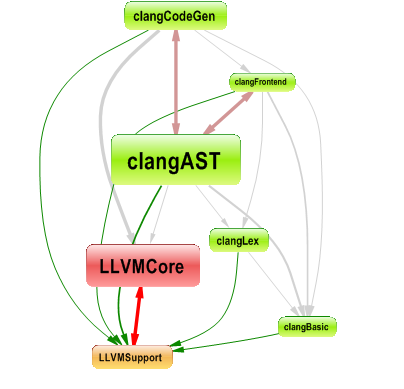
You can choose a project, right-click menu, and CppDepend proposes to explore the graph of dependencies between namespaces.
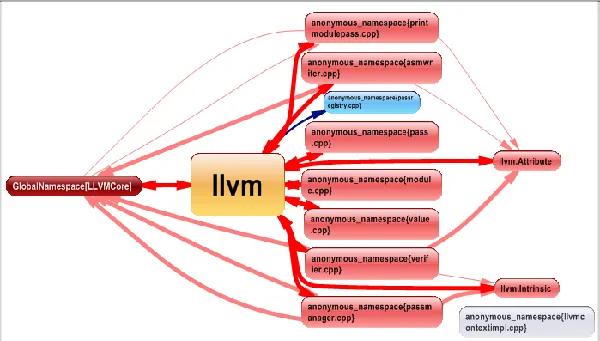
And for each namespace, CppDepend proposes to explore the graph of dependencies between types of a namespace.

And by right-click menu, CppDepend proposes to explore the graph of dependencies between members (methods + fields) of a type.
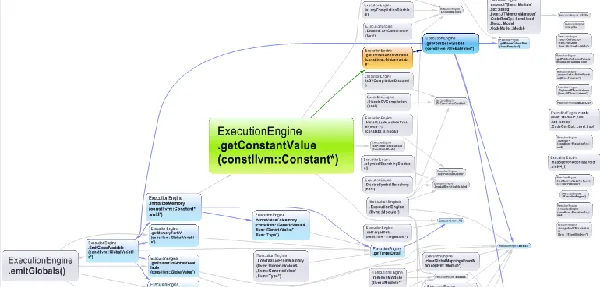
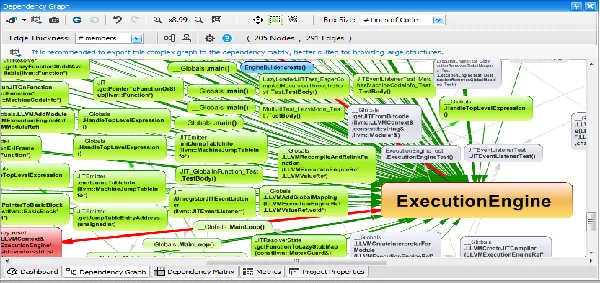
Call Graph
CppDepend can generate any call graph you might need with a two steps procedure.
- First: Ask for direct and indirect callers/callees of a type, a field, a method, a namespace or a project. The effect is that the following CQLinq query is generated to match all callers or callees asked.
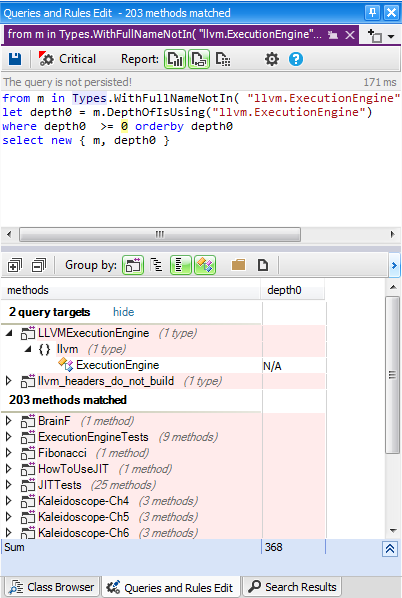 Notice that, in the CQLinq query result, the metric DepthOfIsUsing/DepthOfIsUsedBy shows depth of usage (1 means direct, 2 means using a direct user etc...). The CQLinq query can easily be modified to only match indirect callers/callees with a certain condition on depth of usage. Notice also that callers/callees asked are not necessarily of the same kind of the concerned code element. For example here we ask for methods that are using directly or indirectly a type.
 - Second: Once the CQLinq query matches the set of callers/callees that the user wishes, the set of matches result can be exported to the Dependency Graph. This has for effect to show the call graph wished.
Class Inheritance Graph
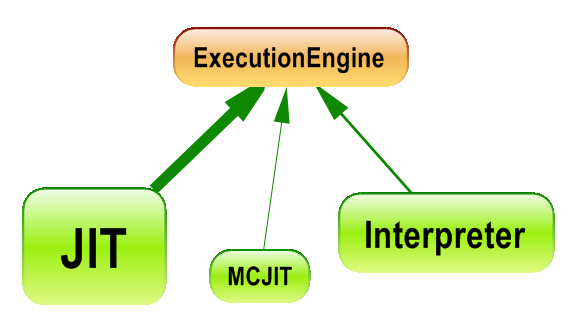
To display a Class of Inheritance Graph, the same two steps procedure shown in the precedent section (on generating a Call Graph) must be applied.
- First: Generate a CQLinq query asking for the set of classes that inherits from a particular class (or that implement a particular interface). Here, the following CQLinq query is generated:
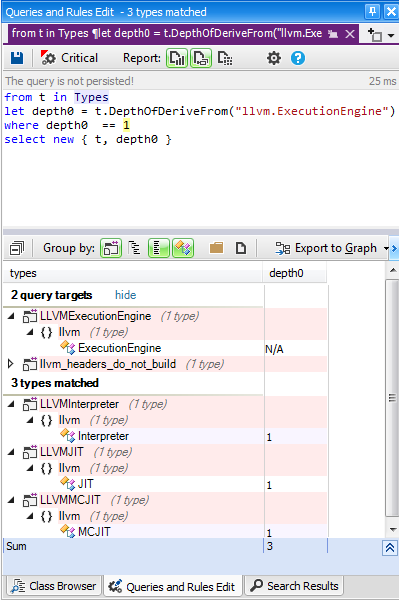
- Second: Export the result of the CQLinq query to the Dependency Graph to show the inheritance graph wished.
Coupling Graph
It might be needed to know which code elements exactly are involved in a particular dependency. Especially when one needs to anticipate the impact of a structural change. In the screenshot below, the CppDepend Info panel describes a coupling between 2 projects.
From pointing a cell in the dependency matrix, it says that X types of a project A are using Y types of a project B. Notice that you can change the option Weight on Cell to # methods, # members or # namespaces, if you need to know the coupling with something else than types.
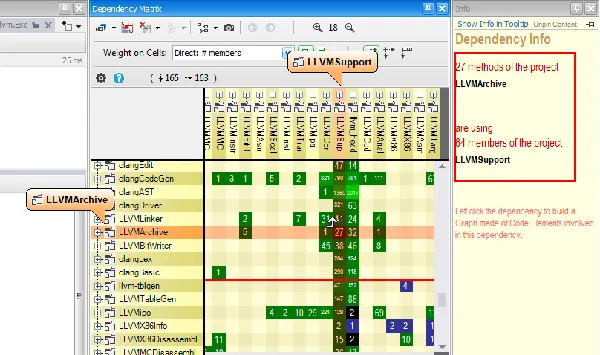
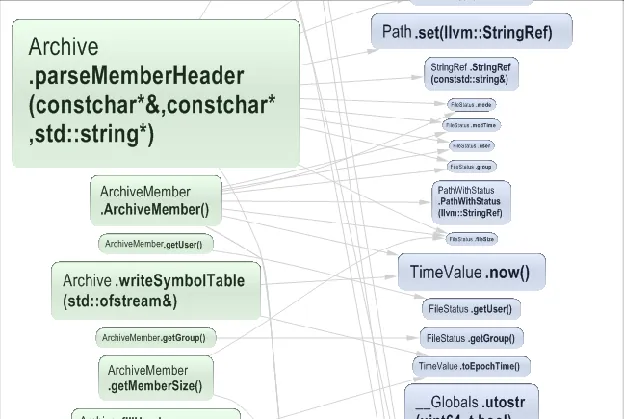
Just left clicking the matrix cell shows the coupling graph below.
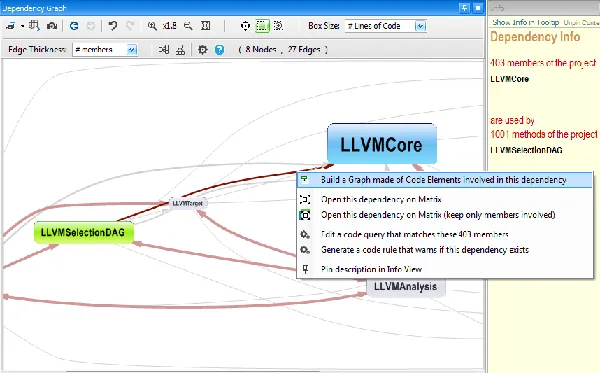
A coupling graph can also be generated from an edge in the dependency graph. Here, you can adjust the option Edge Thickness to something else than # type.
Path Graph
If you wish to dig into a path or a dependency cycle between 2 code elements, the first thing to do is to show the dependency matrix with the option Weight on Cells: Direct & indirect depth of use.
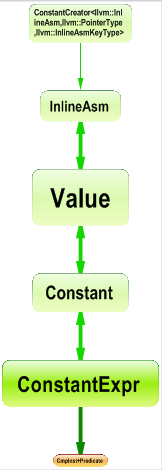
Matrix blue and green cells will represent paths while black cells will represent dependency cycles. For example, here, the Info panel tells us that there is a path of minimal length 7 between the 2 types involved.
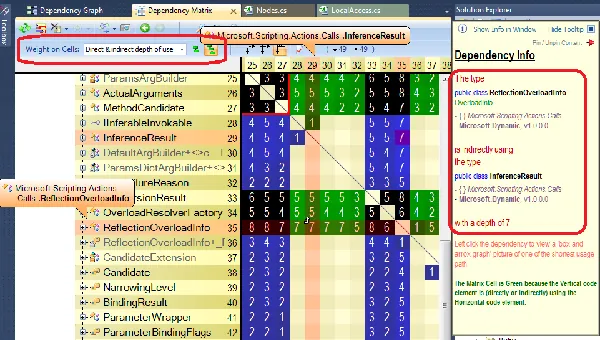
Just left clicking the cell shows the path graph below.
All Paths Graph
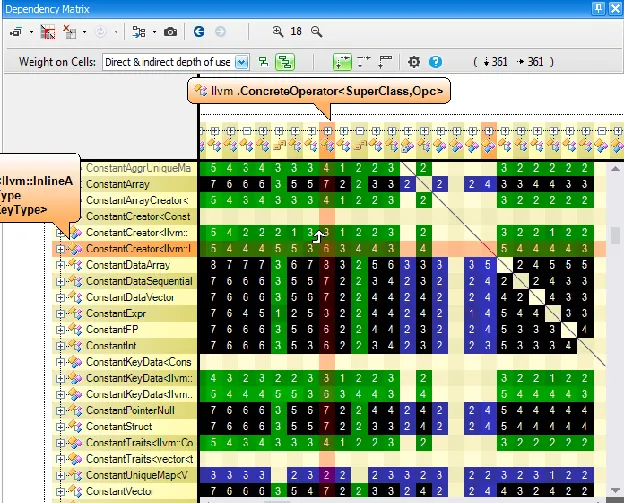
In certain situations, you'll need to know about all paths from a code element A to a code element B. For example, here, the Info panel tells us that there is a path of minimal length 2 between the 2 types involved.
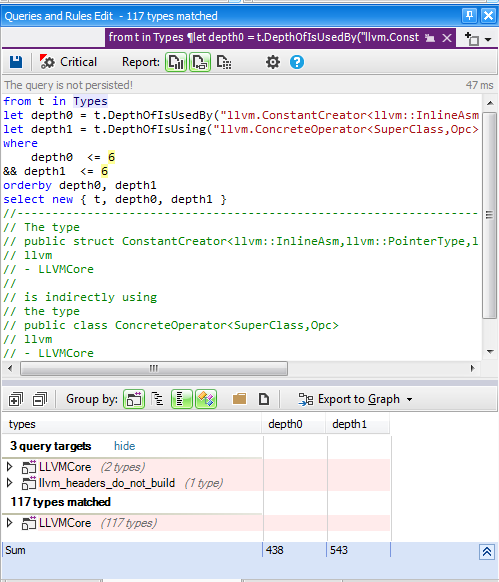
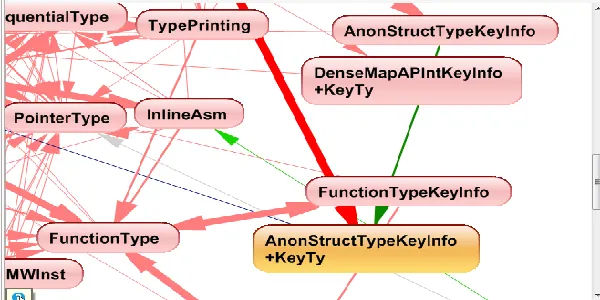
Finally exporting to the graph the 12 types matched by the CQLinq query, shows all paths from A to B.
Cycle Graph
As we explained in the previous section, to deal with dependency cycle graphs, the first thing to do is to show the dependency matrix with the option Weight on Cells: Direct & indirect depth of use. Black cells then represent cycles.
For example, here, the Info panel tells us that there is a dependency cycle of minimal length 5 between the 2 types involved.
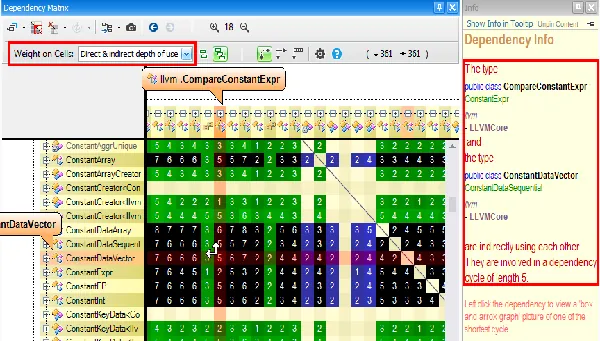
Just left clicking the cell shows the cycle graph below.
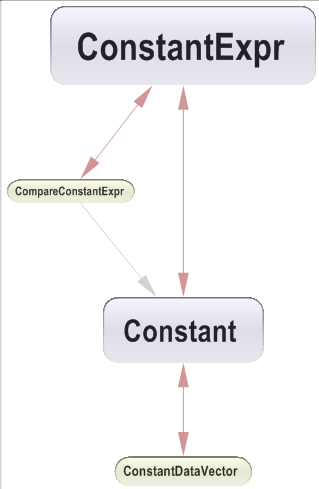
We'd like to warn that obtaining a clean 'rounded' dependency cycle as the one shown above, is actually more an exceptional situation than a rule.
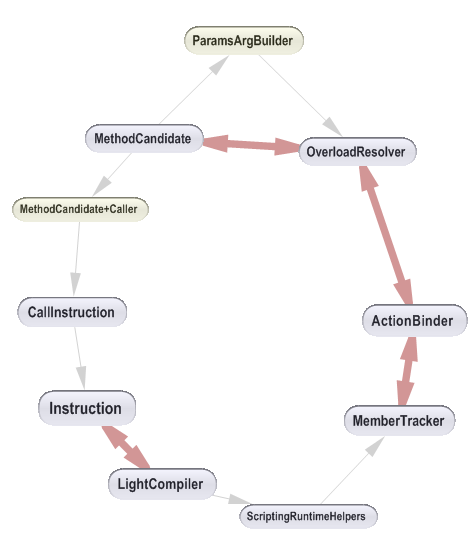
Often, exhibiting a cycle will end up in a not 'rounded' graph as the one shown below. In this example, the minimal length of a cycle between the 2 types involved (in yellow) is 12. Count the number of edges crossed from one yellow type to the other one, and you'll get 12. You'll see that some edges will be counted more than once.
Large Graph visualized with Dependency Structure Matrix
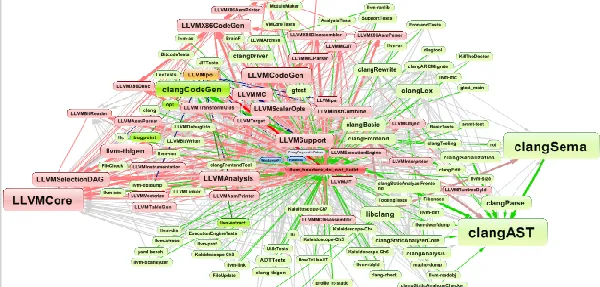
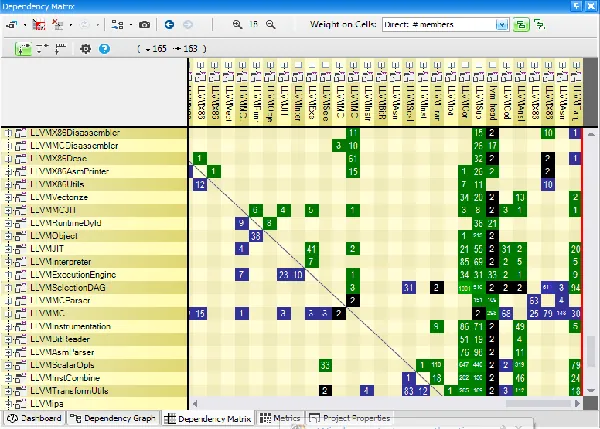
Here, we'd like to underline the fact that when the dependency Graph becomes unreadable, it is worth switching to the dependency Matrix.
Both dependency Graph and dependency Matrix co-exist because:
- Dependency Graph is intuitive but becomes unreadable as soon as there are too many edges between nodes.
- Dependency Matrix requires time to be understood, but once mastered, you'll see that the Dependency Matrix is much more efficient than the Dependency Graph to explore an existing architecture.
More information on the Dependency Matrix readability can be found in Identify Code Structure Patterns at a Glance
To illustrate the point, find below the same dependencies between 77 namespaces shown through Dependency Graph and Dependency Matrix.
Try CppDepend Today
Start your 14-day free trial with full access to all documentation features. No credit card required.